
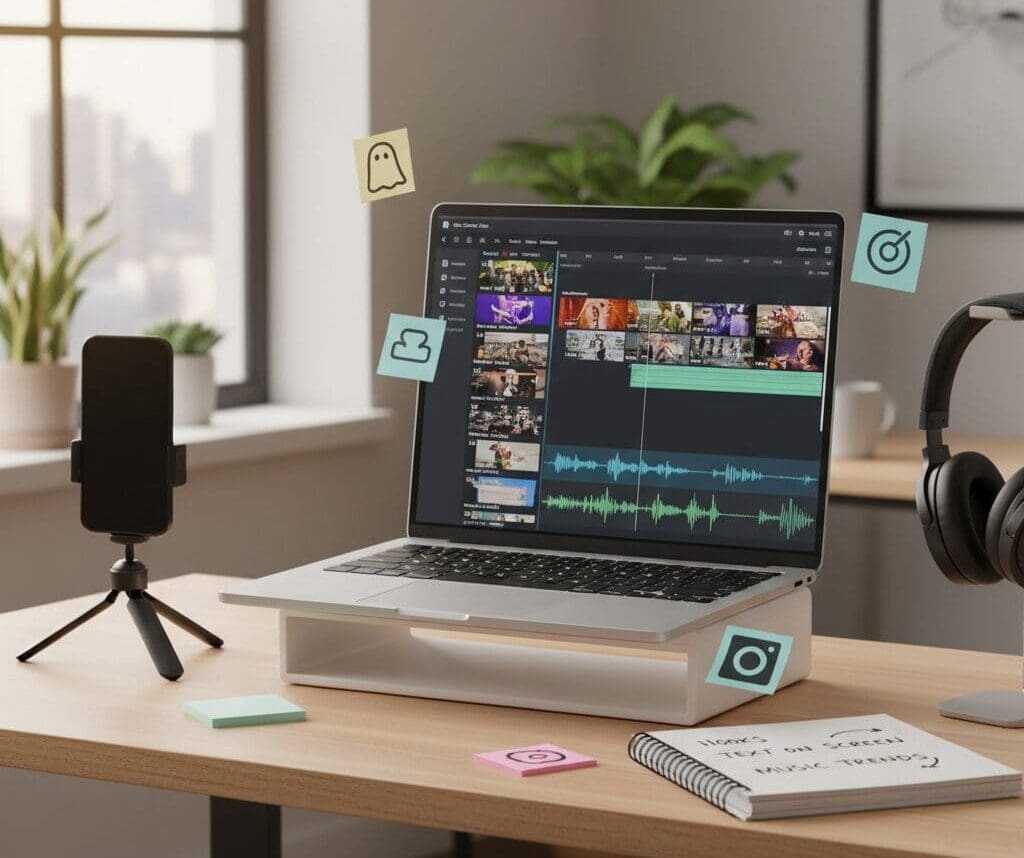
Short‑form video is one of the best ways to get your content seen, but the difference between a scroll‑past and a save‑and‑share often comes down to one thing: the edit.
CapCut has become a go‑to editing app for creators because it’s powerful, free, and designed for social content. Whether you’re making a Reel, TikTok, or YouTube Short, learning how to edit in CapCut properly will help your videos look polished, professional, and on‑brand.
Below is a practical, step‑by‑step guide to turning your raw footage into a finished video, including cutting clips, editing, using AI tools, adding auto captions, and retouching.
1. Start With a Clear Concept and Vertical Settings
Before you even touch the timeline, get clear on:
- Hook: What will grab attention in the first 1–3 seconds?
- Message: What’s the one thing you want viewers to remember?
- Call to action: Follow, comment, save, click the link, or share?
Then set up your project correctly:
- Open CapCut and tap New Project.
- Choose your main video clips from your camera roll.
- Set the aspect ratio to 9:16 (perfect for TikTok and Reels).
- Adjust the frame rate to 30 fps or 60 fps for smoother motion.
Getting this right at the start saves headaches later.
2. Cut Your Clips for Pace and Story
The first real edit is all about structure and pacing.
- On the timeline, tap a clip to select it.
- Use the Split tool to cut at the exact moment you want to start or stop.
- Delete the dead space: pauses, stumbles, or long transitions.
- Keep your cuts tight, especially in the first 5 seconds.
Aim for:
- Fast, clean pacing that matches the energy of your content.
- One idea per shot – if a clip tries to do too much, split it.
- No wasted seconds – attention is your most valuable currency.
Pro tip: Watch your rough cut with sound on and off. If the story still makes sense without audio, your visuals are strong.
3. Refine With Basic Edits: Timing, Speed, and Transitions
Once your rough cut is in place, refine it.
Adjust timing
- Drag the ends of each clip to trim micro‑moments of silence or awkward movement.
- Sync key actions (like a beat drop, reveal, or punchline) to the music.
Use speed changes
- Select a clip and choose Speed.
- Use Normal for simple slow‑motion or speed‑up.
- Use Curve for more dynamic speed ramps (great for transitions or dramatic reveals).
Add transitions sparingly
CapCut offers lots of transitions, but less is more.
- Use simple cuts for most edits.
- Add subtle transitions (like Fade or Zoom) between scenes or locations.
- Avoid using a different flashy transition every clip – it can look chaotic and amateur.
4. Enhance With AI Tools
CapCut’s built‑in AI can save you time and make your videos look more advanced without needing pro‑level skills.
AI background removal
- Select your clip, then choose Remove Background (or similar AI option).
- This can isolate you from a messy background and let you add a clean colour, image, or video behind you.
AI templates
- Explore Templates for trending formats.
- Drop your clips into a template to get instant pacing, effects, and transitions.
- Customize text, colours, and timing so it still feels like your brand, not a copy‑paste.
AI auto‑reframe and resizing
If you’re repurposing content from another format:
- Use AI tools that automatically reframe your subject so they stay centred.
- This is especially helpful if you’re cutting down a horizontal video into vertical.
AI is there to assist, not replace your eye. Use it to speed up the technical work so you can focus on story and style.
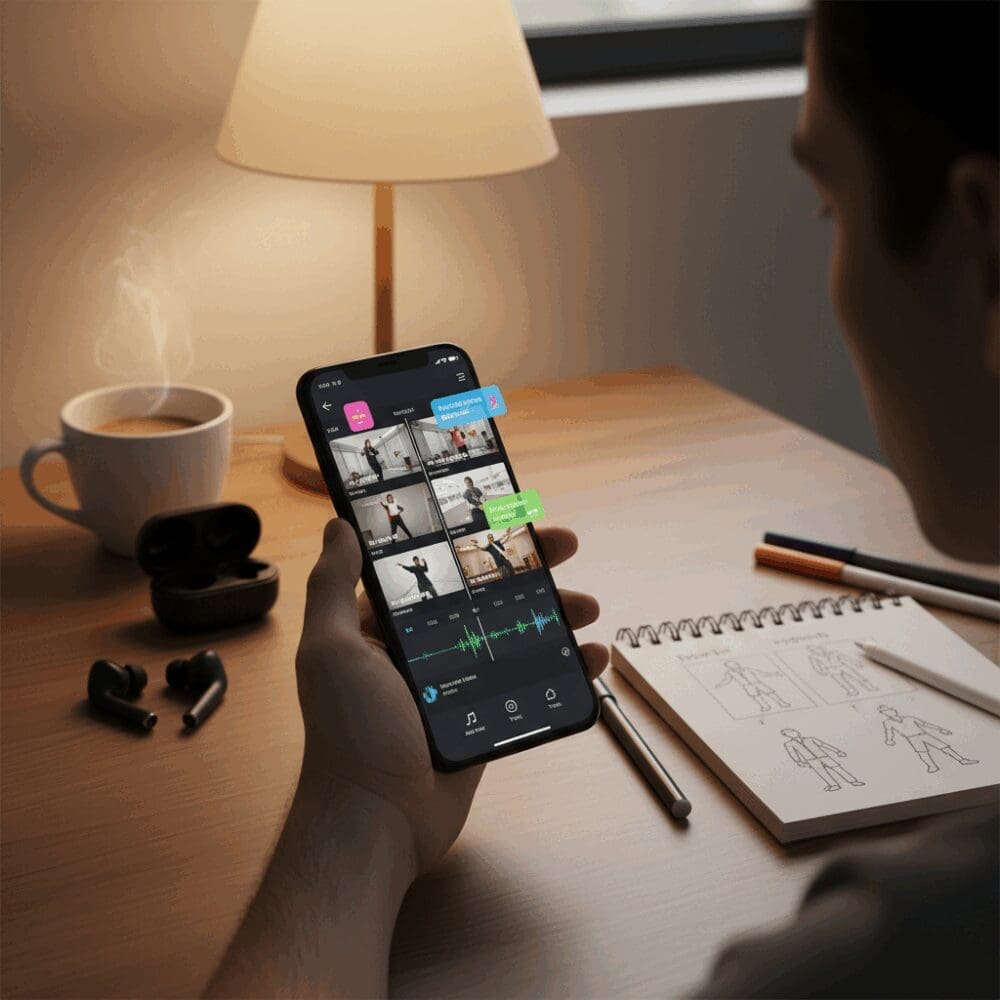
5. Add Text, Titles, and Auto Captions
Most people scroll with sound off at least some of the time. Captions and on‑screen text are non‑negotiable if you want to reach and retain.
Auto captions
- Tap Text and select Auto Captions.
- Choose the language and let CapCut generate captions from your audio.
- Play through and edit any mistakes – AI is good, but not perfect.
- Adjust the font, size, and colour to match your brand.
Keep captions:
- High‑contrast and easy to read.
- Large enough for mobile screens, but not covering your face or key visuals.
Emphasis text and titles
- Add short, bold text for key phrases, hooks, or calls to action.
- Time text to appear exactly when the word is spoken or the moment happens.
- Use consistent fonts and colours throughout your content to make your videos feel cohesive.
6. Polish With Filters, Colour, and Retouching
This is where your video starts to look truly finished.
Colour correction and filters
- Tap your clip, then tap Filters or Adjust.
- Instead of cranking up a heavy filter, start with subtle tweaks:
- Increase brightness slightly if your footage is dark.
- Adjust contrast for more depth.
- Fine‑tune temperature (warmer for cozy, cooler for modern/techy).
- Apply the same look across all clips for a consistent feel.
Retouching (use lightly)
CapCut includes beauty and retouch tools. These can help polish your footage, but overdoing it can make things look fake.
- Use Skin smoothing at low levels to reduce harsh lighting or minor blemishes.
- Adjust Sharpen to bring back detail if your footage looks soft.
- Avoid extreme reshaping or heavy filters that change how you actually look.
The goal is to look like your best, most well‑lit self – not a completely different person.
7. Add Music and Sound Design
Sound is half the experience on TikTok and Reels.
- Import audio or select music that fits the mood and pace.
- Sync your cuts and key moments to the beat.
- Use subtle whooshes, clicks, or swipes to enhance transitions.
Balance your audio levels:
- Keep your voice clear and above the music.
- Lower the background music slightly when you’re speaking.
- Avoid clipping or distortion by checking the loudest parts of your video.
8. Final Review: Watch Like a Viewer
Before exporting, watch your video all the way through a few times.
Ask yourself:
- Does the first 1–3 seconds hook me?
- Is there any moment where my attention drops?
- Is the message clear without needing extra explanation in the caption?
- Does the video feel like my brand – visually and tonally?
Trim anything that feels slow, confusing, or unnecessary. Shorter and sharper almost always wins.
9. Export With the Right Settings
When you’re happy with your edit:
- Tap Export.
- Choose 1080p or higher for quality.
- Select 30 or 60 fps, depending on your original footage.
- Save to your device, then upload to TikTok, Instagram Reels, or YouTube Shorts.
Upload natively to each platform rather than reposting from watermarked downloads. This usually performs better and looks more professional.
10. Keep Experimenting and Iterating
There’s no single “perfect” video, but there is a perfect process: create, test, learn, and refine.
- Try different hooks and opening shots.
- Experiment with pacing, music styles, and caption styles.
- Pay attention to what your audience watches to the end, shares, and saves.
CapCut gives you the tools; your creativity and consistency do the rest. With a clear story, tight cuts, smart use of AI, clean captions, and subtle retouching, either on your phone or a laptop, you’ll be well on your way to creating Reels and TikToks that not only look great but actually connect and convert.

markmunroe
Latest posts by markmunroe (see all)
- How Professional Moving Out Cleaning Can Make Your Toronto Relocation a Stress-Free Experience - January 12, 2026
- Living Between Trips, Homes, and Creative Projects - December 27, 2025